
How to Use the XC IPTV Player for Optimal Streaming
Master the XC IPTV Player: A Complete Guide
Are you looking to enhance your streaming experience? The XC IPTV Player is a powerful tool that can help you access a wide range of content seamlessly. This guide is tailored for users who want a straightforward approach to setting up and optimizing their XC IPTV Player. You’ll learn about the key features, setup steps, and common troubleshooting techniques to ensure a smooth streaming experience.
In this article, we’ll cover:
- Key takeaways to keep in mind.
- An overview of the XC IPTV Player.
- How it works and what you need.
- Choosing the right version for your needs.
- Step-by-step setup instructions.
- A comparison of XC IPTV features.
- Common mistakes and troubleshooting tips.
- Expert tips, safety, legal aspects, and FAQs.
Key Takeaways
- The XC IPTV Player supports various devices including Android TV and Firestick.
- Setup is straightforward but requires proper configuration of your IPTV service.
- Common issues can often be resolved with simple troubleshooting steps.
- Legal usage of the XC IPTV Player is crucial; always adhere to local laws.
What is XC IPTV Player?
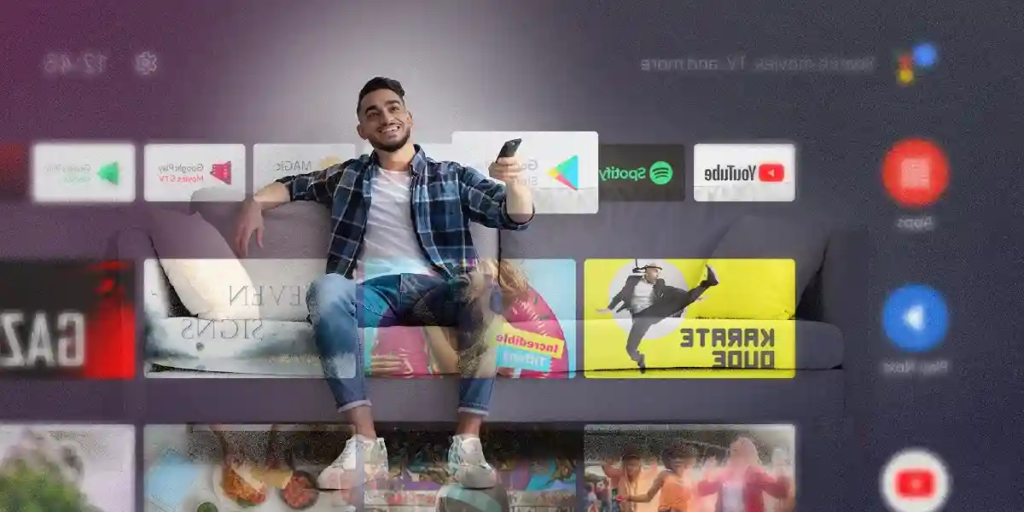
The XC IPTV Player is a versatile application designed for streaming IPTV content. It allows users to watch live television and access on-demand content through an intuitive interface. This player supports various playlist formats, including M3U and Xtream codes, making it compatible with numerous IPTV services.
How it Works / Requirements
The XC IPTV Player operates by connecting to your IPTV service provider. To use it, you will need:
- A compatible device (Android, Android TV, Firestick, etc.).
- An active subscription to an IPTV service.
- Internet connection (preferably high-speed for optimal performance).
Once you have these requirements in place, you can proceed with the installation and setup.
Choosing the Right XC IPTV Player
Various versions of the XC IPTV Player are available, each tailored for specific devices. For example:
- XC IPTV for Android TV: Optimized for larger screens and remote control navigation.
- XC IPTV for Firestick: Designed to work seamlessly with the Firestick interface.
Consider your viewing habits and the devices you own when selecting the right player. You can find more details on compatible devices on our IPTV service page.
Setup Steps for XC IPTV Player
Follow these steps to set up the XC IPTV Player:
- Download the XC IPTV Player from your device’s app store.
- Open the app and navigate to the settings menu.
- Input your IPTV service credentials, including the M3U URL or Xtream code.
- Save your settings and restart the app.
- Begin browsing channels and content.
Make sure your internet connection is stable during the setup process to avoid interruptions.
Comparison Table of XC IPTV Features
| Feature | XC IPTV for Android | XC IPTV for Firestick | Common Features |
|---|---|---|---|
| User Interface | Optimized for touch | Remote-friendly | Intuitive navigation |
| Playlist Support | M3U, Xtream | M3U, Xtream | Multiple formats |
| Device Compatibility | Android, Android TV | Firestick only | Variety of devices |
| EPG Support | Yes | Yes | Included |
Common Mistakes + Troubleshooting
When setting up the XC IPTV Player, users may encounter several common mistakes. Here are some quick fixes:
- Incorrect Credentials: Double-check your IPTV provider username and password.
- Buffering Issues: Ensure a stable internet connection; consider restarting your router.
- App Crashes: Clear the app cache in your device settings and restart the app.
- No Channels Showing: Verify that your playlist URL is correct.
Expert Tips, Safety, Legal Aspects + FAQs
To optimize your experience with the XC IPTV Player, consider the following:
- Regularly update the app for the latest features.
- Use a VPN for privacy and to avoid ISP throttling.
- Familiarize yourself with the legal requirements in your region regarding IPTV usage.
Question
What devices can I use with the XC IPTV Player?
The XC IPTV Player is compatible with various devices such as Android, Android TV, Firestick, and more.
Question
How do I install the XC IPTV Player?
Download the XC IPTV Player from your device’s app store, open it, and follow the setup steps to input your IPTV service credentials.
Question
What should I do if I encounter issues with the XC IPTV Player?
If you experience issues, check your internet connection, verify your credentials, and consult the troubleshooting section above for common fixes.
Question
Is the XC IPTV Player legal to use?
Yes, the XC IPTV Player itself is legal, but ensure that your IPTV service complies with local laws and licensing rules.
Question
How can I optimize my experience with XC IPTV Player?
Use a stable internet connection, keep the app updated, and consider using a VPN for enhanced privacy and performance.
This content is informational and does not promote illegal streaming or unauthorized distribution. Always follow local laws and licensing rules.