Get these four things ready.
Connect HDMI, select the matching TV input and use the device’s supplied power adaptor.
- Exact model and Android version, usually in Settings → About.
- Internet: Ethernet is useful when Wi-Fi is weak.
- Your MyUltra username and supplied activation details.
- Your remote and enough free device storage.
Install the approved app.
Follow the installation route supplied by MyUltra for your model. Menu names vary between manufacturers.
- Download only the app confirmed for your account.
- Allow installation only for the chosen installer if prompted; turn that permission off afterwards.
- Keep Play Protect enabled and ask for help if blocked.
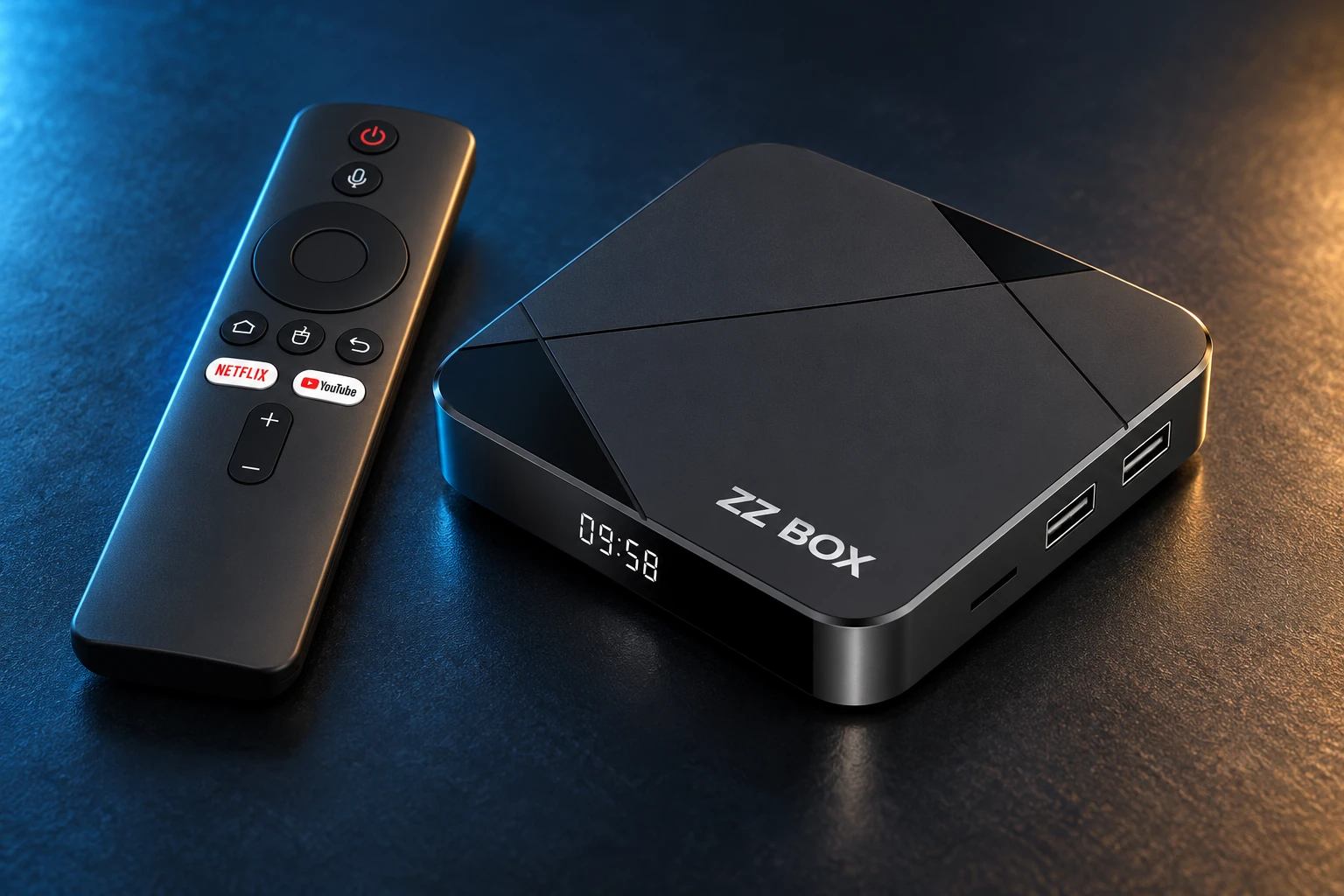
Choose a service for a compatible device, or a configured ZZ Box.
Open, activate, let it load.
Enter the activation code supplied by MyUltra and let the account configuration finish. Use arrows, OK and Back to navigate.
- Try a live channel, the guide and an available on-demand item.
- Check sound and picture before changing advanced player settings.
- Keep activation codes private.
Match the check to the problem.
Check HDMI, power and internet first. If the app opens but will not activate, note the exact error. If it pauses during playback, use the connection checklist.
- No picture: confirm TV input and HDMI.
- Cannot install: check model, Android version, storage and package error.
- No activation: check the code with MyUltra.
Prefer it prepared for you?
ZZ Box is configured and receives a 24-hour extended test before dispatch. Android 14, 4GB RAM and 16GB storage, with a 1-year hardware warranty (value €19.99), 3 years of remote access support (value €29.99 per year), and 1 year of No Block Premium (value €29.99), included with the box.
A REAL PERSON. A USEFUL NEXT STEP.
A different screen? We can help.
Tell us your device model, account username and exact message. Include what you have already tried so the team can pick up from there.