MYULTRA DEVICE GUIDE · SMART TV

Smart TV? Check the system inside.

A Smart TV label does not tell you which apps it can run. Android TV and Google TV differ from Samsung Tizen, LG webOS and other TV systems.

Browse quick answers →
Practical stepsReal people to helpPlans + prepared boxes
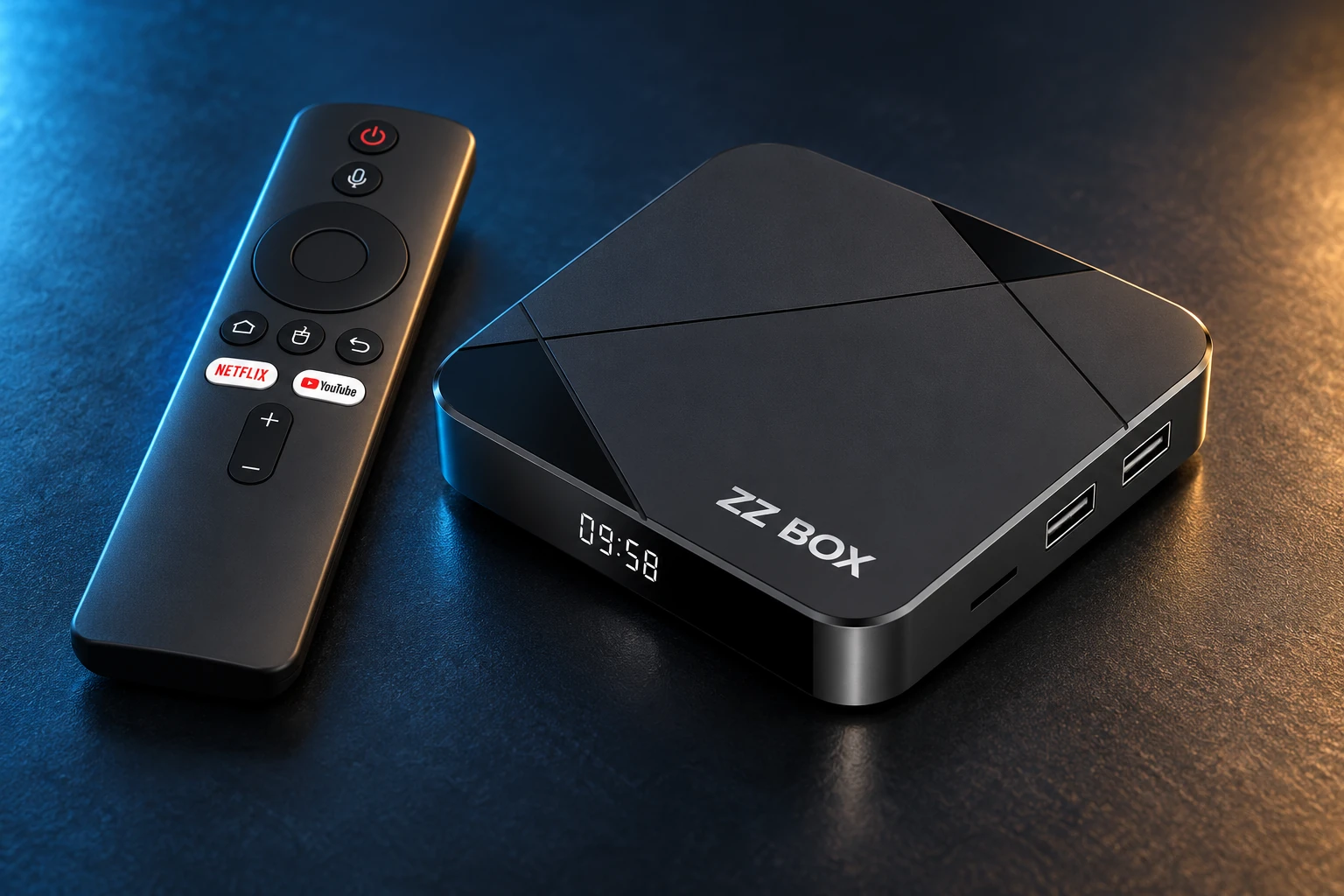
ZZ Box, the prepared MyUltra Android TV box
READY FOR YOUR NEXT STEPYour setup, made simpler.Explore the prepared ZZ Box →
START HERE

Get to the useful part.

01 / YOUR NEXT STEP

Find your exact TV model.

Check Settings → About or the label on the TV. Ask MyUltra to confirm the model and operating system before purchasing.

02 / YOUR NEXT STEP

Android TV or Google TV?

A compatible Android installation may be available. Follow the approved device instructions and keep Play Protect enabled.

Android setup→
YOUR DEVICE. YOUR CHOICE.Already set up, or starting fresh?

Choose a service for a compatible device, or a configured ZZ Box.

Build my package →
03 / YOUR NEXT STEP

Other TV systems need another route.

Do not try to install an Android APK on a different TV operating system. A prepared ZZ Box connects to a TV using HDMI and provides its own Android environment.

Explore ZZ Box→Get help with this step→

A REAL PERSON. A USEFUL NEXT STEP.

A different screen? We can help.

Tell us your device model, account username and exact message. Include what you have already tried so the team can pick up from there.

MAKE IT YOURS

Good viewing starts with the right setup.

Ready to get started?

Ask our team about credit card or Bitcoin payment.

LET’S GET YOU STARTED

Pay with Bitcoin

Leave your details. Our team will help complete your purchase on WhatsApp.

12:00–03:00 ICT daily · WhatsApp response within 10 minutes during these hours.

We collect contact details only. Never enter card details, wallet passwords or recovery phrases here.