
Confirm what is blocked.
Save the warning and destination. Identify whether it comes from your provider, device or app. A playback spinner alone does not identify a filter.
Let the account holder review it.
Open the provider’s official website or app directly. Look for security or parental controls and follow its current guidance.
- Prefer a specific exception where offered.
- Keep general malware and household protection enabled.
- Record changes so they can be reversed.
YOUR DEVICE. YOUR CHOICE.Already set up, or starting fresh?
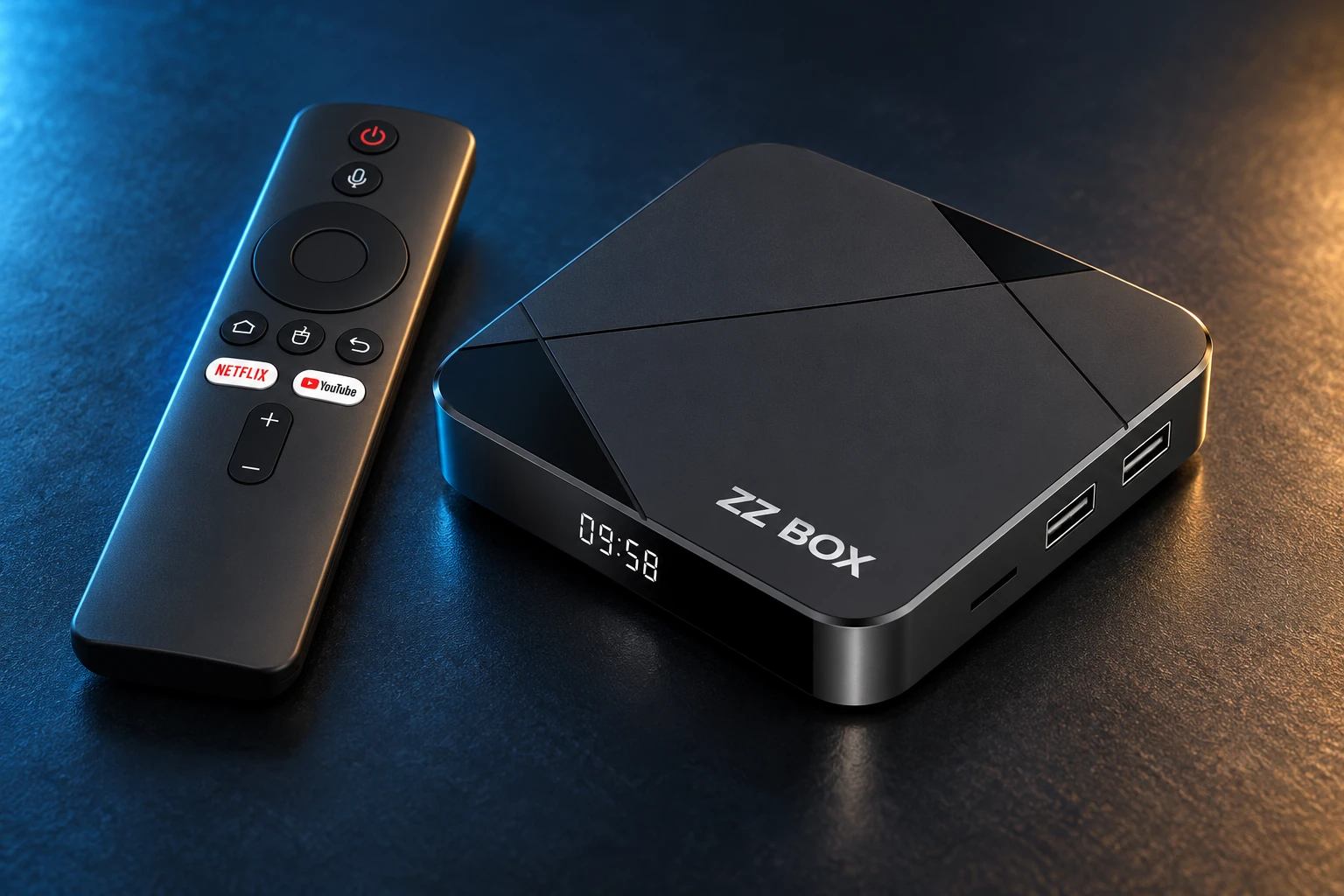
Build my package →Choose a service for a compatible device, or a configured ZZ Box.
Retest one change at a time.
Allow the provider’s stated time for changes to apply. If the warning remains, contact support with the exact details.
A REAL PERSON. A USEFUL NEXT STEP.
A different screen? We can help.
Tell us your device model, account username and exact message. Include what you have already tried so the team can pick up from there.