Installed today does not mean supported tomorrow.
Amazon restricts apps it identifies as providing access to unlicensed content, and has also disabled apps over security concerns. A download completing does not guarantee an app will be allowed to open or keep working.
- A restriction can affect installation or launch.
- Sideloading does not exempt an app from Amazon’s controls.
- This does not mean every third-party app is blocked, or that MyUltra is blocked on every Fire TV.
New Fire TV? Check the operating system.
Fire OS is Android-based. Vega OS, used by devices including Fire TV Stick 4K Select, is a different platform. It needs apps built for Vega; an Android APK will not run on it.
- Check the exact model and software version in Settings.
- Do not buy a new Fire TV assuming your existing Android app will transfer.
- Developer testing facilities for Vega do not make Android APKs compatible.
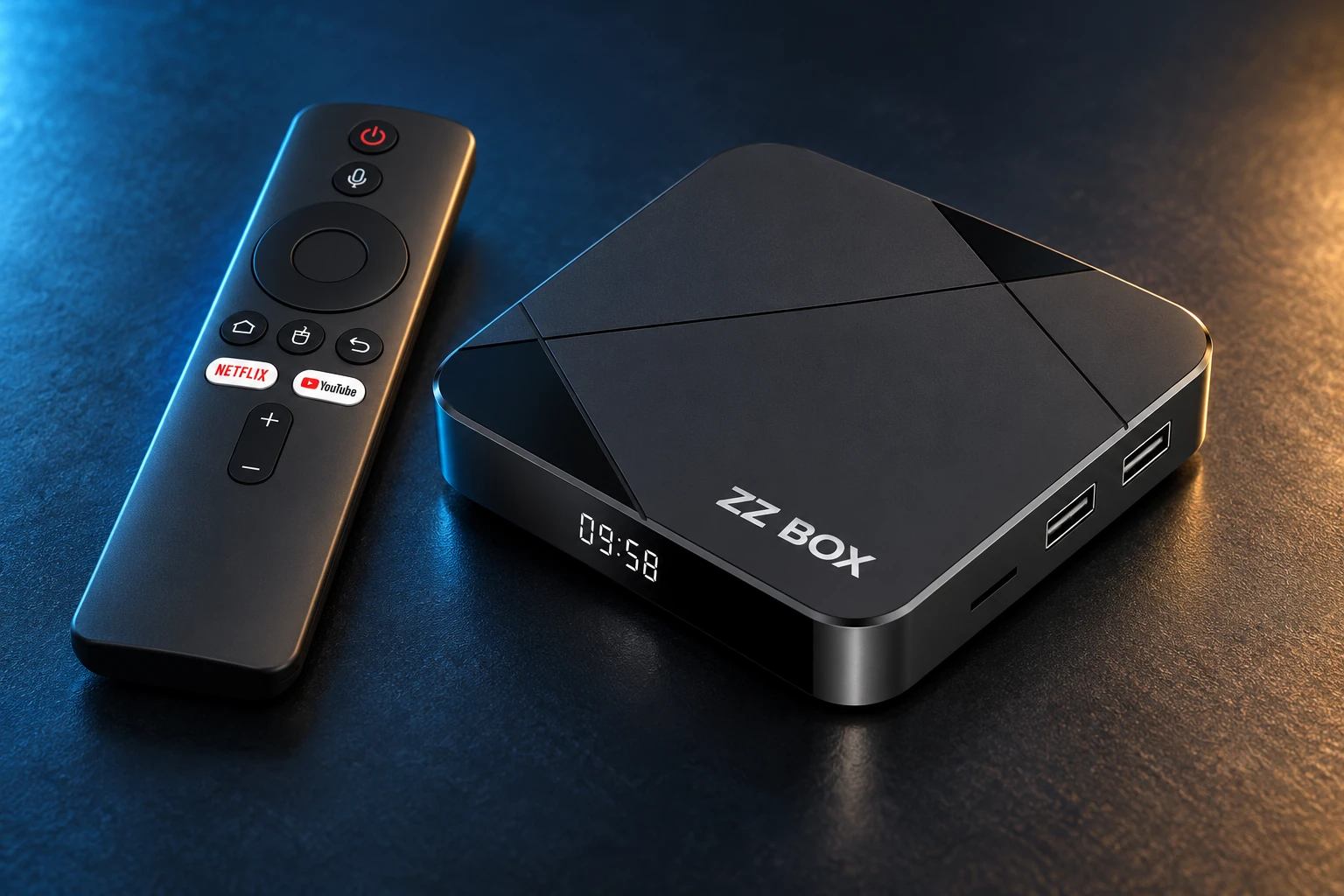
Choose a service for a compatible device, or a configured ZZ Box.
Recognise the warning on your screen.
An installation-blocked message or a warning that an app may put your device or data at risk needs investigation. A spinning player, expired subscription or missing channel is a different symptom.
- Photograph the exact warning and note the app and device model.
- Stop retrying unknown APK sources or cloned packages.
- A reinstall is not a reliable way to resolve a platform restriction.
- Do not disable security protection to force a flagged app to run.
Missing app? It may be Auto Offload.
Amazon’s Auto Offload can remove infrequently used apps to free storage while retaining their sign-in information and settings. A cloud icon indicates an offloaded app. This is different from a security or content-policy block.
- On supported models, check Settings → Applications → Auto Offload.
- You can turn Auto Offload off if you want to keep unused apps installed.
- Turning it off will not remove an app block or make Vega run Android apps.
- Menus and availability vary by model and software version.
Choose a setup we can prepare and support.
Our recommendation for new MyUltra customers is ZZ Box, or a compatible Android device confirmed by the team. Changing device does not make unsafe software safe; use only the approved app for your account.
- ZZ Box: Android 14, 4GB RAM and 16GB storage.
- Configured with a 24-hour extended test before dispatch.
- 3 years of remote support and a 1-year box warranty.
- Standard delivery package €179.99; Express €199.99. Check the different inclusions before ordering.
Already have a working Fire TV?
Check your exact model with MyUltra before renewing or buying for that device. Do not assume every Fire OS model is incompatible, and do not assume an app working now guarantees future compatibility.
- Tell us the model, operating system, app version and exact on-screen message.
- Keep a working installation intact while support checks it.
- Ask us to help plan a move to a confirmed compatible device if needed.
A REAL PERSON. A USEFUL NEXT STEP.
A different screen? We can help.
Tell us your device model, account username and exact message. Include what you have already tried so the team can pick up from there.