First, check what you watch on.
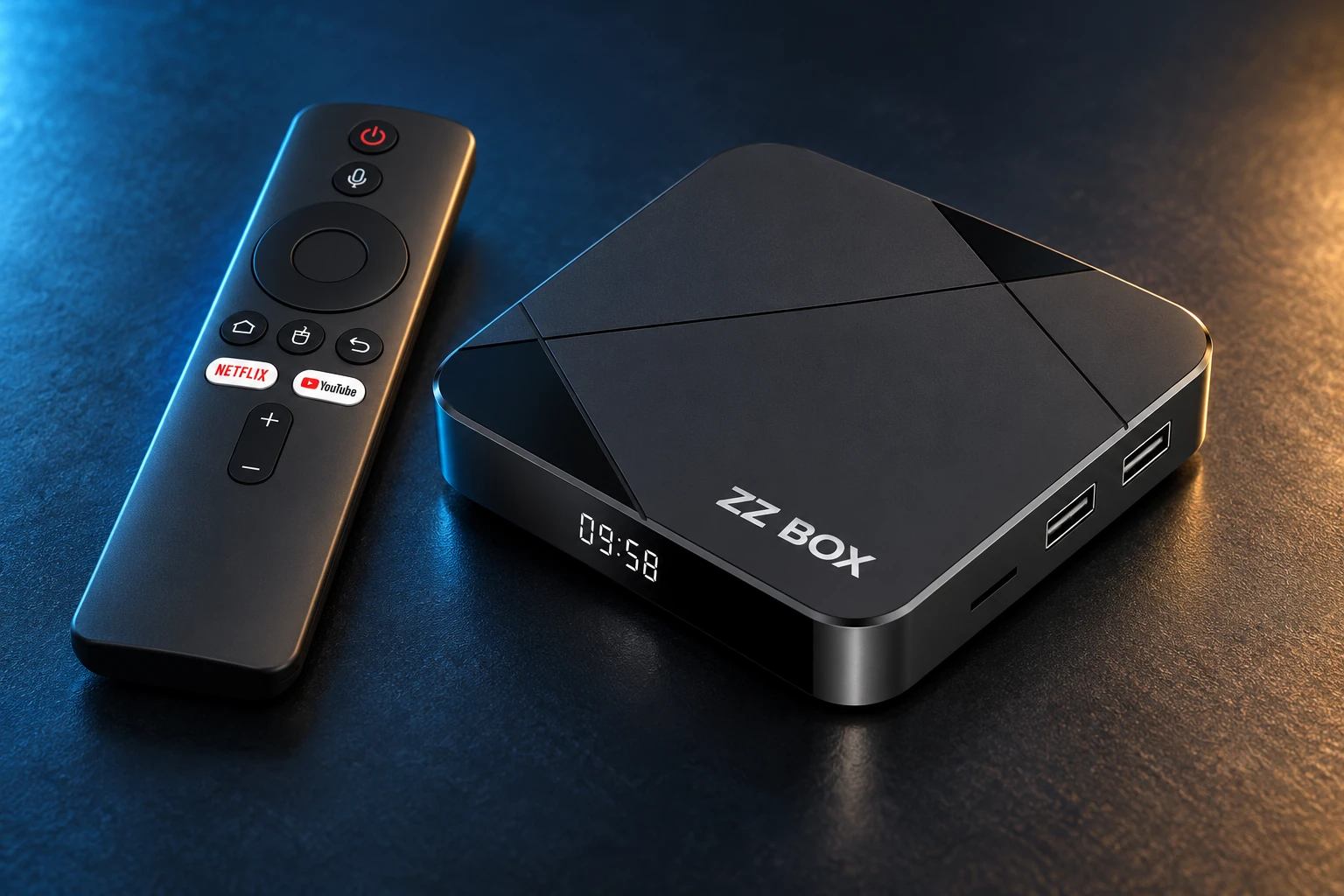
ZZ Box and compatible Android TV, Google TV and Android boxes are the main setup routes. The exact model and operating system matter.
- ZZ Box: use the prepared setup supplied with your box.
- Android TV / Google TV: check the model and Android version.
- Fire TV: check first. Vega OS cannot install an Android APK; older Fire OS models differ.
- Windows app: coming soon. Android APKs are not Windows, iPhone or Mac installers.
Install the app supplied for your account.
Ask MyUltra for the current Superapp installation link for your device. Use that approved link rather than a similarly named app or another provider’s download code.
- Keep power and internet connected.
- If Android requests installation permission, allow only your chosen installer and switch that permission off afterwards.
- Keep Play Protect enabled. Stop and contact us if an app is blocked or incompatible.
Choose a service for a compatible device, or a configured ZZ Box.
Enter your MyUltra activation code.
Open the app and enter the activation code supplied by MyUltra. Allow your account configuration to finish loading before navigating away.
- Keep your code private.
- Have your username and order reference ready if activation fails.
- Tell support the exact error; never send your password.
Find your way around.
Arrow buttons move the highlight, OK selects and Back returns. Available sections and programmes depend on your account and app version.
- Live TV: browse channels and start watching.
- TV Guide: see what is on now and next.
- Movies and Box Sets: browse on-demand viewing.
- Catch-up: look for supported programmes and dates in the guide.
- Use favourites and recently watched sections where provided.
Keep the working setup working.
Use the current release approved by MyUltra. When Android offers Update, install over the existing app to retain local settings where supported. Avoid uninstalling first unless support asks.
- Check free storage and a stable connection.
- For signature, compatibility or blocked-install errors, stop and send your model, installed app version and exact message to support.
Already using another MyUltra app?
UltraXC, UltraTV Neo, UltraSmart and BoxOffice are separate app routes. Use the app assigned to your account; these are not interchangeable Superapp downloads.
A REAL PERSON. A USEFUL NEXT STEP.
A different screen? We can help.
Tell us your device model, account username and exact message. Include what you have already tried so the team can pick up from there.